Teach a robot a job
About fifteen minutes. You need a robot imported and a TCP on it — your first robot gets you there.
Animating with an IK target is Blender's own workflow: move the goal, keyframe it, move it again. It works, and for a robot waving at a camera it is the right tool.
Robot people do not work that way. They teach the arm a handful of poses, name them, and say how to get from one to the next — and the how matters, because a move that has to be straight and a move that just has to be quick are different instructions to the machine. That is what the Waypoints panel does, and it is what makes a render read as a robot doing a job rather than an arm-shaped puppet.
1. Add an IK target
Linear moves are solved, so the rig needs a goal to solve to. In Inverse Kinematics, click Add IK Target. Wait out the compile.
If your job is all joint moves you can skip this — but you almost certainly want at least one straight move, so do it now.
2. Teach the first pose
Put the playhead on frame 1.
Pose the robot where you want it to start. Either drag the IK target, or use the Joints (FK) sliders — it makes no difference to what gets recorded.
In Waypoints, click Record. A row appears, and an Empty appears in the viewport at the tool.
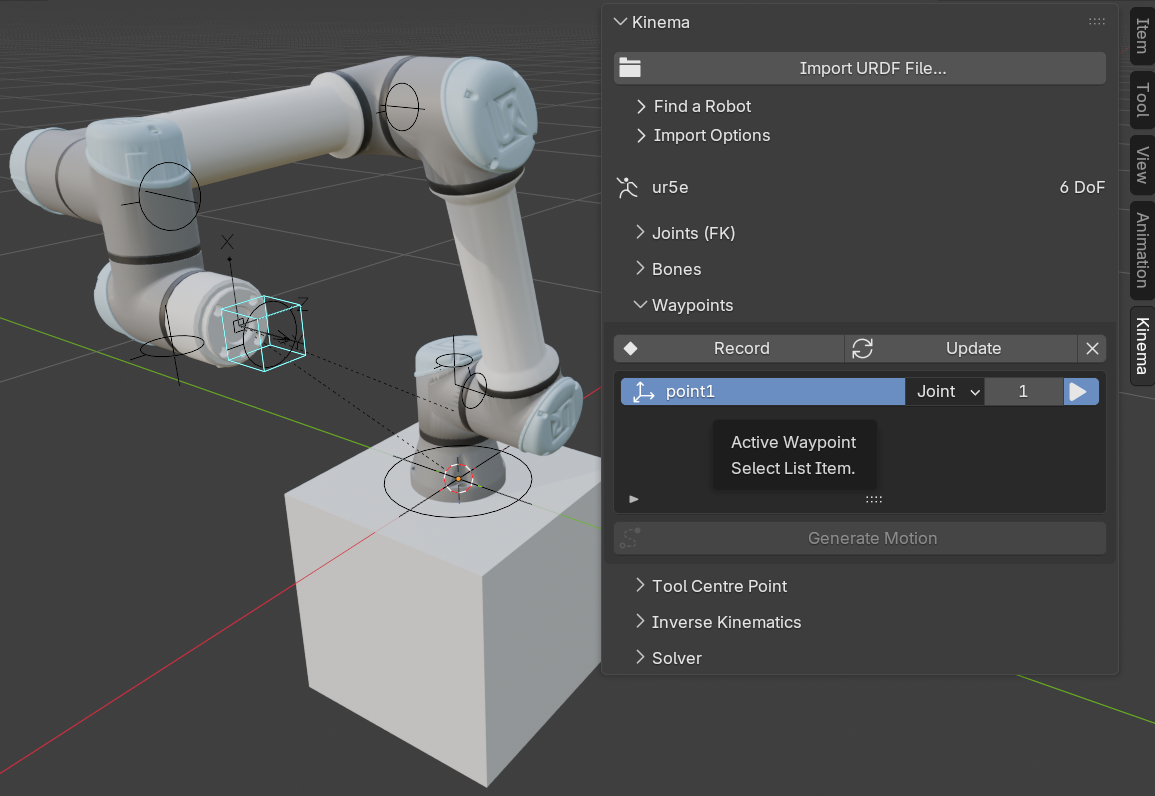
Double-click the name and call it home.
Two things are stored, not one
The tool pose and the joint values. A pose on its own does not say which way the elbow was bent, and a six-axis arm can reach the same tool pose up to eight different ways. Storing both is what lets ▶ put the robot back exactly as you taught it, instead of re-solving and picking a different arrangement that happens to reach the same point.
3. Teach the rest
Move the playhead, pose the robot, Record. Repeat.
A four-point pick-and-place is a good first job:
| Frame | Name | Where |
|---|---|---|
| 1 | home |
Folded up, out of the way |
| 30 | approach |
Above the part, tool pointing down |
| 50 | pick |
On the part |
| 75 | retract |
Straight back up, clear |
Names are yours. Use ones you will recognise in three weeks.
4. Say how it moves
Each row has a Move dropdown, and it describes how the robot arrives at that waypoint — which is why the first row's setting is ignored. There is nothing before it.
Set the job up like this:
| Waypoint | Move | Why |
|---|---|---|
home |
— | Nothing precedes it |
approach |
Joint | Crossing the workspace. Nobody cares what path the tool takes |
pick |
Linear | Coming down onto the part. This one has to be straight |
retract |
Linear | Lifting off. Also has to be straight, or the tool drags |
That distinction is the whole point of the panel:
- Joint interpolates the joints. It is fast, it is always reachable, and the tool swings through whatever arc falls out of the geometry.
- Linear drives the tool along the straight line between the two poses. Predictable, and what a process move needs — but it can run into the robot's limits where a joint move would not.
5. Generate
Click Generate Motion, then scrub.
The robot now runs the job. What it wrote is ordinary keyframes — joint channels for the joint move, the IK goal for the linear ones — so everything you already know about Blender's timeline applies from here.
6. Make it look right
This is the part that is easy to miss. The generated motion is correct, not finished.
Open the graph editor and ease the linear spans. Between two keys, easing changes the speed profile along the straight line without bending it — x, y and z share the interpolation shape, so the tool still travels the line, it just accelerates into it and slows out. That is exactly what a real controller's acceleration ramp does.
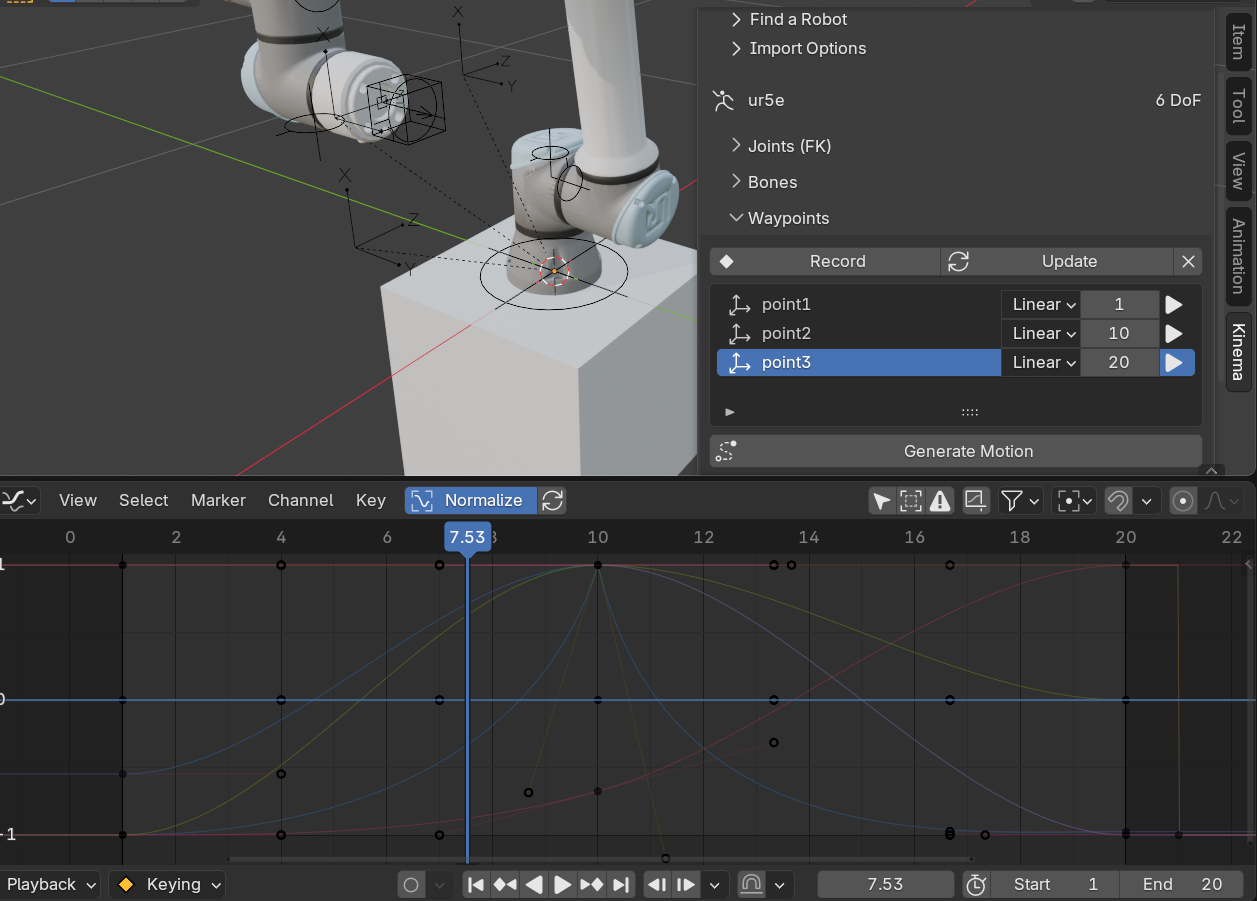
Round a corner by giving the tool three waypoints through it and letting Bezier handles bow the path. That is a blend radius, and it is why real robots do not stop dead at every point.
Retime by editing the frame in a row and regenerating. Dragging the generated keys works too, but the next regeneration writes the stored frames again — the row is where a retime sticks.
7. Check the speeds
Scrub or play the job with the rig selected. A joint moving faster than the real robot's motor allows turns red: its slider in the Joints panel, and its dial in the viewport, which is labelled with how far over it is. Open Velocity Limits for every joint's speed against its limit.
Red means the move is too quick for the frames you gave it. Give the waypoint a later frame and regenerate. The limits come from the robot's description. If you have its MoveIt configuration, Load Joint Limits… reads the speeds it's really run at. See Velocity Limits.
8. Change your mind
- Moved the robot to a better pose? Highlight the row and click Update.
- Want the point somewhere else entirely? Drag its Empty in the viewport — snap it to a vertex on the part if that is what you are aiming at — and regenerate. This re-aims linear moves. A joint move replays the joint values it was taught with and cannot follow a marker, so Kinema tells you which rows that applies to; Update them, or switch them to Linear.
- Wrong order? Change the frames.
Regenerating replaces the previous motion rather than stacking on it, and only across the frames the job covers. Animation you keyed elsewhere in the scene survives.
9. Hand it off
When the shot is right, bake. That turns the whole thing — solved linear spans included — into plain joint curves that play back with Kinema uninstalled.
What this is not
A motion planner. Kinema will happily generate a linear move that drags the arm through its own base, or one that cannot be reached at all; nothing checks. It follows the instruction you gave.
It doesn't time the motion for you either. The timing is whatever your frame numbers say. Kinema tells you when a joint goes faster than its velocity limit, but it doesn't slow the move down, and it doesn't know about acceleration. If you need a cycle time you can quote, this is not yet the tool that gives it to you.
Next
- Bake and hand off — make it render anywhere
- The Waypoints panel — every control, in one table