Your first robot
Ten minutes, start to finish: fetch a robot description, import it, look at what you got, and move it.
We will use a UR5e — a six-jointed industrial arm from Universal Robots. It is the "default cube" of robot arms: small enough to understand, real enough to be useful.
You will need git on your machine for the first step. If you already have a URDF of your
own, skip to importing your own robot instead — the rest
of this page applies unchanged.
1. Open the Kinema tab
In the 3D viewport, press N to open the sidebar, then click the Kinema tab.
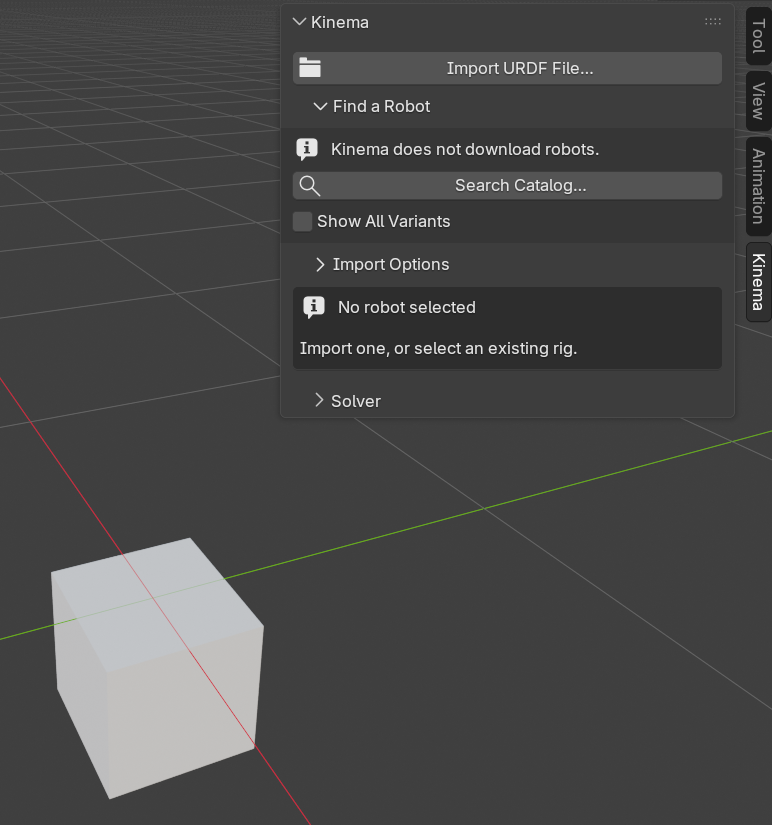
With nothing selected you will see two buttons and a note saying no robot is selected. That is the starting state.
2. Find the robot
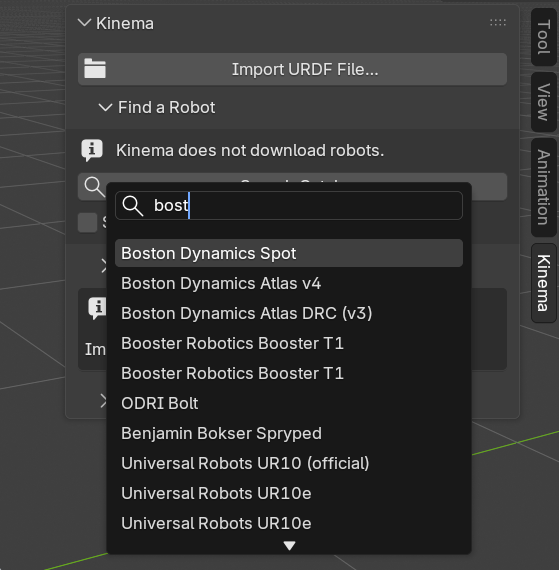
Expand Find a Robot and click Search Catalog….
A picker opens over the catalog's 186 robots — arms, humanoids, quadrupeds, drones,
grippers — with the maker and joint count for each. Type ur5e to filter, select it, and
confirm.
Nothing is imported yet. Kinema has copied a git clone command to your clipboard and is
showing you which file to open once you have run it:
git clone https://github.com/UniversalRobots/Universal_Robots_ROS2_Description.git
# cd Universal_Robots_ROS2_Description && git checkout 22f055da2fa7
# then open: urdf/ur.urdf.xacro
Paste that into a terminal — all three lines are safe to paste together, the last two are comments — and let it clone.
Why you and not Kinema
Kinema ships the catalog — names, makers, joint counts, and where each robot lives — but downloads nothing. Blender extensions may not fetch code or data after they are installed, and robot descriptions are other people's repositories under their own licences. See Robot catalog.
3. Import it
Click Import URDF File…, navigate to the cloned repository, and open the file the
catalog named — urdf/ur.urdf.xacro.
Blender pauses while it reads the description and builds the rig. A second or two for an arm like this one; longer for a humanoid, where most of the time goes on loading meshes.
4. Look at what you got
One armature, named after the robot, with its meshes parented to it. The Kinema panel now shows the robot's name and 6 DoF — six degrees of freedom, meaning six independently movable joints. (What's a DoF?)
Drop into Pose Mode and open the bone collections in the Properties editor (Object Data → Bone Collections). You will find four:
| Collection | What is in it | Visible? |
|---|---|---|
Kinema/FK |
One bone per joint — your controls | Yes |
Kinema/TCP |
The tool centre point marker | Yes |
Kinema/IK |
The IK target, once you add one | Hidden |
Kinema/Mechanism |
Internal bones that make the rig work | Hidden |
Two collections start hidden on purpose
Kinema/IK and Kinema/Mechanism are hidden so that a fresh rig shows you controls
and nothing else. If you were expecting more bones than you can see, they are there —
just tucked away. Toggle their visibility any time.
Back in the sidebar, the Bones panel lists the same bones as rows. That is where you point IK at a particular bone, and where you bolt a tool or a cable harness onto a link — neither of which you need yet, but it is the panel you will come back to. See the sidebar reference.
5. Move it
In the Joints (FK) panel there is one slider per joint, labelled with the joint's real name from the manufacturer's data, and each one is clamped to that joint's true range of motion — you cannot drive the elbow through the forearm.
Drag a few. The arm moves.
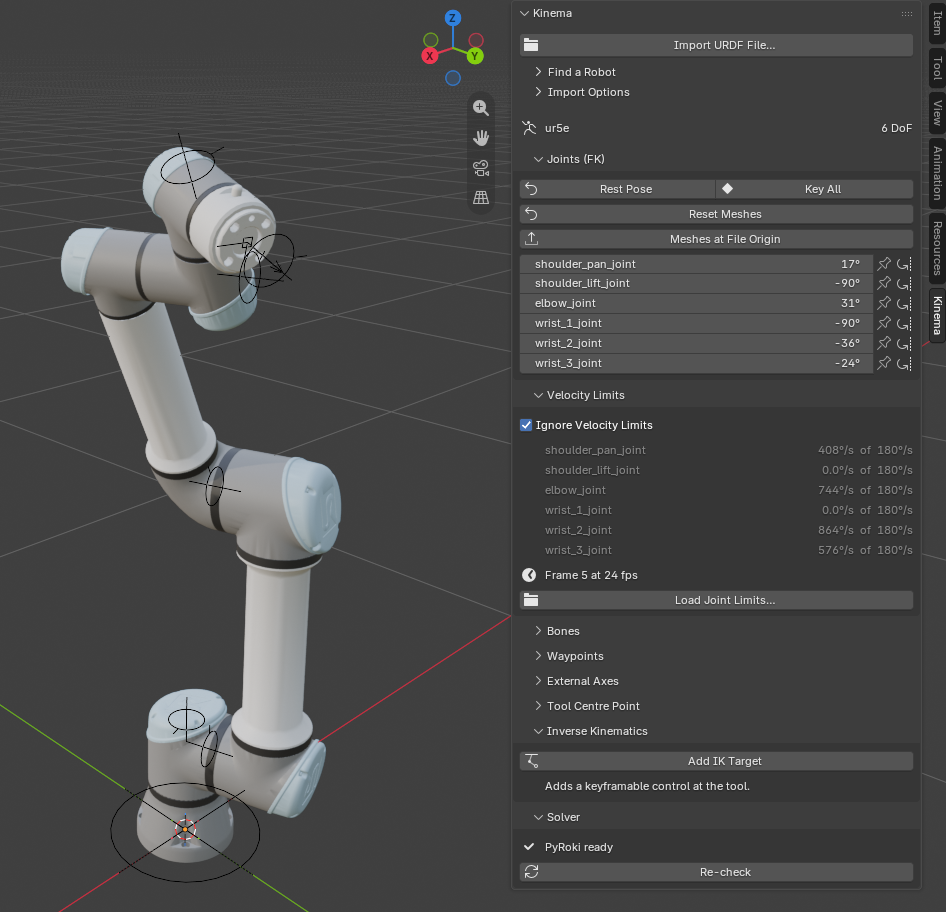
Two buttons sit at the top of that panel:
- Rest Pose — everything back to zero, the robot's home configuration
- Key All — a keyframe on every joint at the current frame
This is forward kinematics: you set joint angles, the robot's shape follows. It is exactly how posing an ordinary Blender armature works.
6. Now do it the other way round
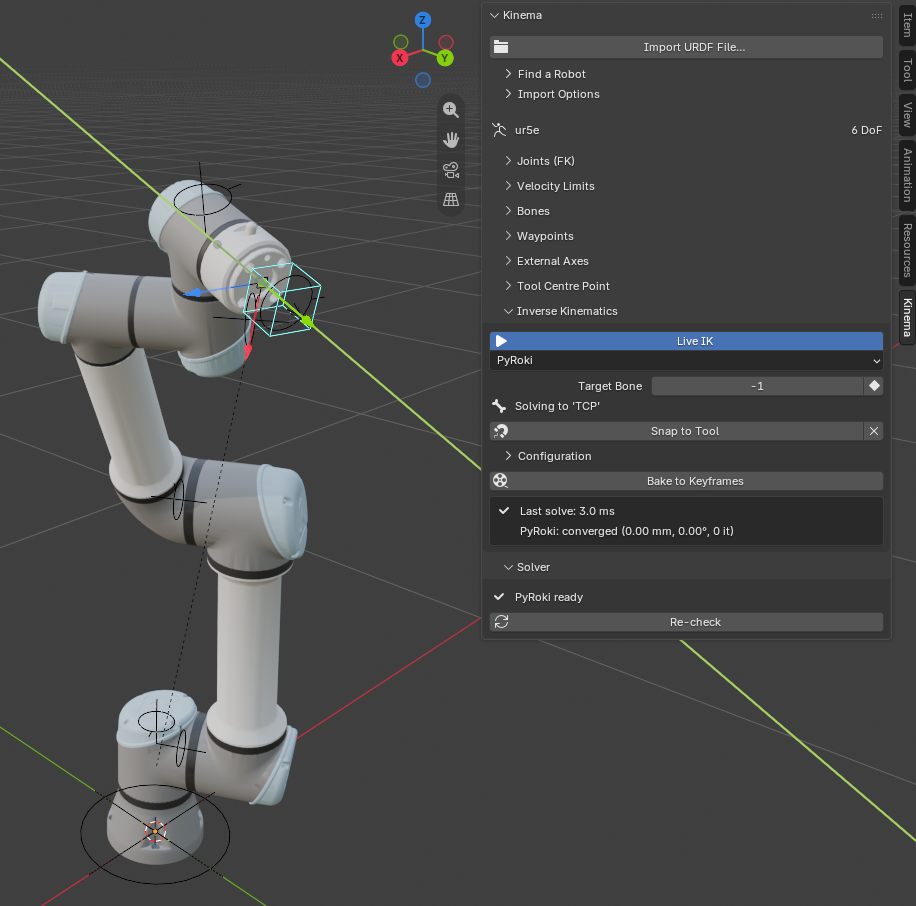
Open the Inverse Kinematics panel and click Add IK Target.
You get a control at the robot's tool tip. Grab it and move it — the whole arm reconfigures to follow, respecting every joint limit. Keyframe that control and you have animated the robot by animating the thing you actually care about: where the tool goes.
The panel reports how long each solve took, typically a few milliseconds.
The first solve takes about 15 seconds
Creating the IK target compiles the solver for this specific robot, behind a wait cursor. It happens once per robot, never again. Later solves are milliseconds.
7. Give it a job
Dragging a control is posing. Robots are usually programmed a level up from that: teach a few poses, name them, and say how the arm gets from one to the next.
Open the Waypoints panel. Pose the robot, press Record, and name the row home.
Move the playhead, pose it somewhere else, Record again. Set the second row's Move to
Linear if the tool has to travel in a straight line to get there, or leave it on
Joint if it just has to arrive.
Press Generate Motion and scrub. The robot runs the job, and what it wrote is ordinary keyframes you can shape in the graph editor like anything else. If a joint turns red, the move is faster than the real robot can go, so give it more frames.
See Teach a robot a job.
Where to go next
- Pose a robot by hand — FK in depth, and when it is the right tool
- Animate with an IK target — the real animation workflow
- Teach a robot a job — waypoints, joint and linear moves
- Bake and hand off — make the
.blendwork on machines without Kinema - Import your own robot — when the robot is not in the catalog