The Kinema sidebar
Everything Kinema does lives in the 3D viewport sidebar. Press N and click the Kinema tab.
There are nine panels. The seven between the top panel and Solver appear only when a Kinema rig is selected.
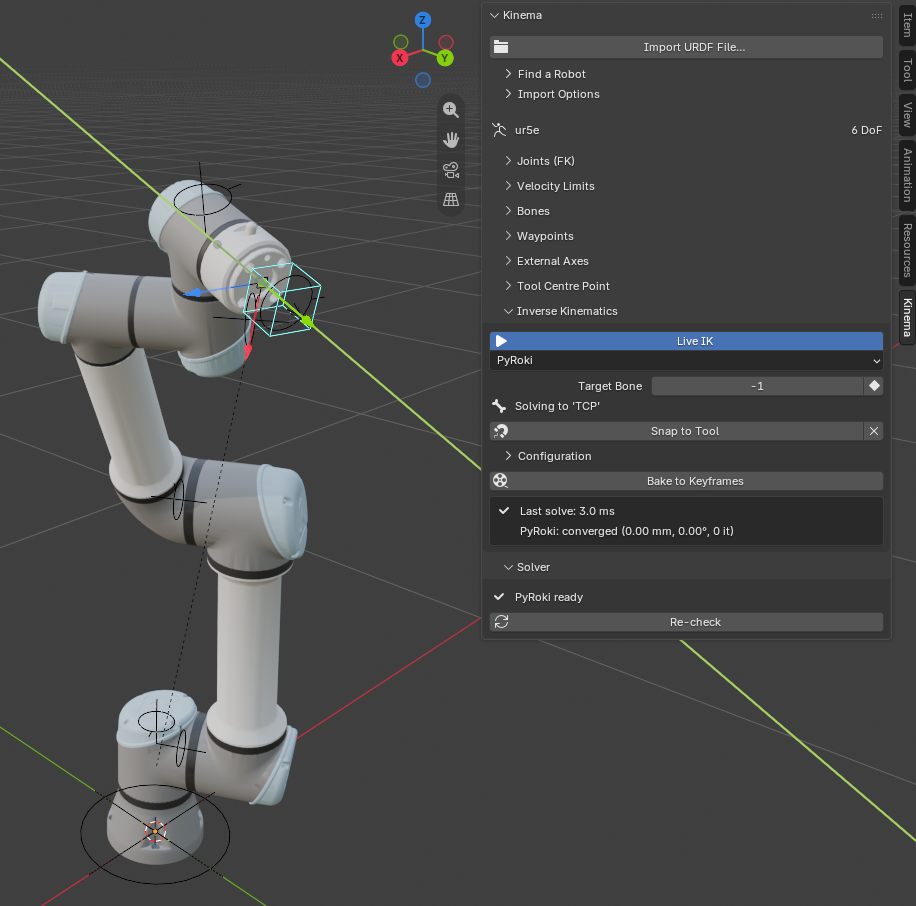
Kinema
The top-level panel. Always available.
| Control | What it does |
|---|---|
| Import URDF File… | Import a local file — URDF, xacro or MJCF |
| Find a Robot | Collapsible. The 186-robot catalog — see below |
| Import Options | Collapsible. Settings applied to the next import — see below |
Import Options
Closed by default, and read at the moment you import: changing one does nothing to a robot already in the scene. The same settings appear in the file browser's sidebar when you pick a file, so you can set them either place.
| Control | What it does |
|---|---|
| Bone Size | Display size of the joint controls. 0 picks one from the robot's own scale |
| Enforce Joint Limits | Add limit constraints from the description. Turn off to pose past a robot's real limits for a shot |
| Import Meshes | Load the robot's visual geometry. Off gives bones only, which imports in a fraction of the time |
| Import Collision Meshes | Also load the coarse hulls a planner uses, into a separate collection that starts hidden — see collision geometry |
| Create TCP | Add a tool centre point marker at the end of the chain |
| Xacro Arguments | Substitution arguments for a .xacro, in the syntax the xacro command line takes: name:=ur5e ur_type:=ur5e. Ignored for a plain URDF or MJCF |
Some descriptions cannot render without an argument, and the file browser lists the ones a
.xacro declares once you select it, with their defaults — so you can see what it wants
before importing rather than after failing. See xacro files.
Collision geometry
A robot description usually contains the robot twice: the visual geometry, which is what it looks like, and the collision geometry, which is the coarse hull a motion planner sweeps for contact. The hulls are cheap boxes and cylinders where the visual mesh has fillets and bolt heads.
With Import Collision Meshes on, both arrive in their own collection under the robot's —
⟨robot⟩ Visual and ⟨robot⟩ Collision — so either can be hidden as a group. Collision
starts hidden and draws as wire, so switching it on over the robot reads as an envelope
rather than as more casing.
You will not normally want it. It is useful when checking why a robot fails a reach, or when exporting to something that needs the hulls.
Find a Robot
Closed by default. It looks a robot up; it does not fetch one.
| Control | What it does |
|---|---|
| Search Catalog… | Open the fuzzy-search picker over the catalog's 186 entries |
| Show all variants | Also list the entries curated out as duplicates, broken or partial, which the picker hides by default |
| Open Repository | Open the last-picked robot's project page in your browser |
Picking a robot copies a git clone command to your clipboard and shows which file to open
once the clone finishes. Load that file with Import URDF File…. See
Robot catalog.
With a Kinema rig selected the panel also shows the robot's name and its degree-of-freedom
count — 6 DoF for a typical industrial arm.
With nothing selected it says No robot selected. That is the empty state, not an error.
Joints (FK)
One slider per movable joint, labelled with the joint's real name from the robot's description file. Each is clamped to that joint's true range of motion.
| Control | What it does |
|---|---|
| Rest Pose | Return every joint to zero — the robot's documented home configuration |
| Key All | Insert a keyframe on every joint channel at the current frame |
| Reset Meshes | Put every link mesh back where the importer placed it |
| Meshes at File Origin | Send every link mesh to the coordinates its own file uses, for editing and export — see below |
Each joint's row has three parts:
| Part of the row | What it does |
|---|---|
| Slider | The joint's value. Turns red while the joint moves faster than its velocity limit at this frame |
| Pin | Hold the joint by hand while IK solves the rest of the arm. Keyframable, so a rail can be handed back to the solver mid-shot |
| Limit icon | Lit when the description gives the joint a range |
Reset Meshes and Meshes at File Origin appear only on rigs that have visual meshes. Reset Meshes exists because Rest Pose returns the joints, and a link mesh nudged by accident is not a joint — see a mesh ended up in the wrong place. Objects you attached yourself are left alone.
Rest Pose cannot always reach zero
Some robots forbid their own zero configuration — every KUKA quantec limits its second axis to a range that stops short of it, because the real axis cannot reach 0°. With limits enforced the rig rests at the nearest allowed value instead, and says so on import. That is the honest answer rather than a fault; see the robot will not go to its rest pose.
Meshes at File Origin
A tick, not a button, because it is a mode you leave again.
Improving a robot's geometry means editing a mesh and writing it back as a drop-in replacement for the file the description points at. Exporters write world space, so the mesh has to actually be at that file's coordinates — and on the rig it never is. The link frame, the visual origin, the mesh scale and the file's own units and up-axis all sit between the two.
Tick the box and every link mesh goes to the coordinates its own file uses. Edit, export, untick, and they return exactly. The meshes stay parented to their bones while it is on, so posing the rig drags them out of place — the panel says so while the tick is set, and unticking is the way back.
Rigs imported before 0.4.0 recorded nothing about what was baked into their vertices, so this cannot work on them; the button says so rather than moving them somewhere wrong. Re-import to get it.
A rig with no movable joints — a fixed sensor mount, say — says so instead.
See Pose a robot by hand.
Velocity Limits
Closed by default. How fast each joint is moving at the current frame, against the fastest it may move. A warning icon on the header says a joint is over its limit even while the panel is closed.
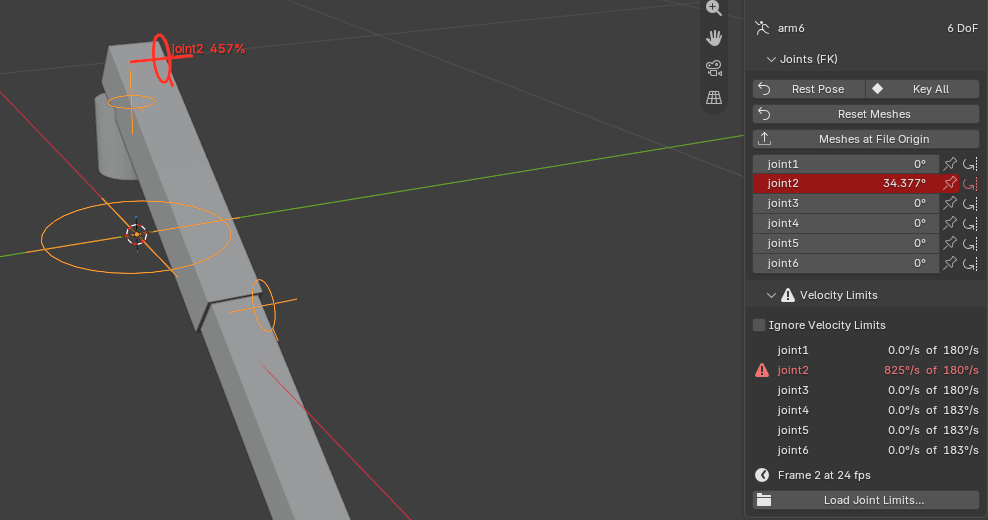
| Control | What it does |
|---|---|
| Ignore Velocity Limits | Stop flagging this rig's joints, in the panel and in the viewport. The numbers stay, greyed out. Saved with the file |
| ⟨joint⟩ ⟨speed⟩ of ⟨limit⟩ | One row per joint that has a limit. Red, with a warning icon, while it is over |
| Frame N at F fps | The frame being measured, and the frame rate the speeds assume |
| Load Joint Limits… | Read limits from a MoveIt or ros2_control joint_limits.yaml |
A joint over its limit is also flagged in the viewport. Its dial or arrow is traced in red, with its name and its speed as a percentage of the limit beside it.
Rotary speeds are shown in degrees per second, or radians if the scene's rotation unit is radians. Slides are in metres per second.
Where the limits come from
- The description. URDF and xacro give each joint a
<limit velocity>, and the importer keeps it. A value of0is taken as "not given". MJCF has no velocity limits. - A
joint_limits.yamlfrom the robot's MoveIt configuration or its ros2_control setup, which often holds the speeds the robot is actually run at. Joints are matched by name:has_velocity_limits: truesets a limit;falseturns it off;- a joint the file doesn't mention keeps the description's value.
Rigs imported before 0.5.0 carry no limits. Import them again, or load a joint_limits.yaml.
How a speed is measured
A joint's speed is how far it moved since the frame before, times the frame rate.
| Joint | Measured against | After a jump or a scrub |
|---|---|---|
| Keyed, including joint moves from Generate Motion and baked IK | its own curve, one frame back | exact |
| Driven by live IK, including linear moves | the pose seen one frame earlier | — until you play or step a frame |
| Neither | the pose seen one frame earlier | still |
- Dropped frames. When playback drops frames, the speed is averaged over the gap, up to three frames. An average can miss a spike inside the gap, but it never reports one that isn't there.
- Range stops. A joint pressed against its range stop doesn't count as moving, whatever its curve does.
- It warns; it doesn't change the motion. To clear the red, retime the move: spread its keys, or give the waypoint a later frame.
Bones
One row per bone, answering the two questions that come up as soon as a robot is imported: what does IK aim at, and what is bolted to this link?
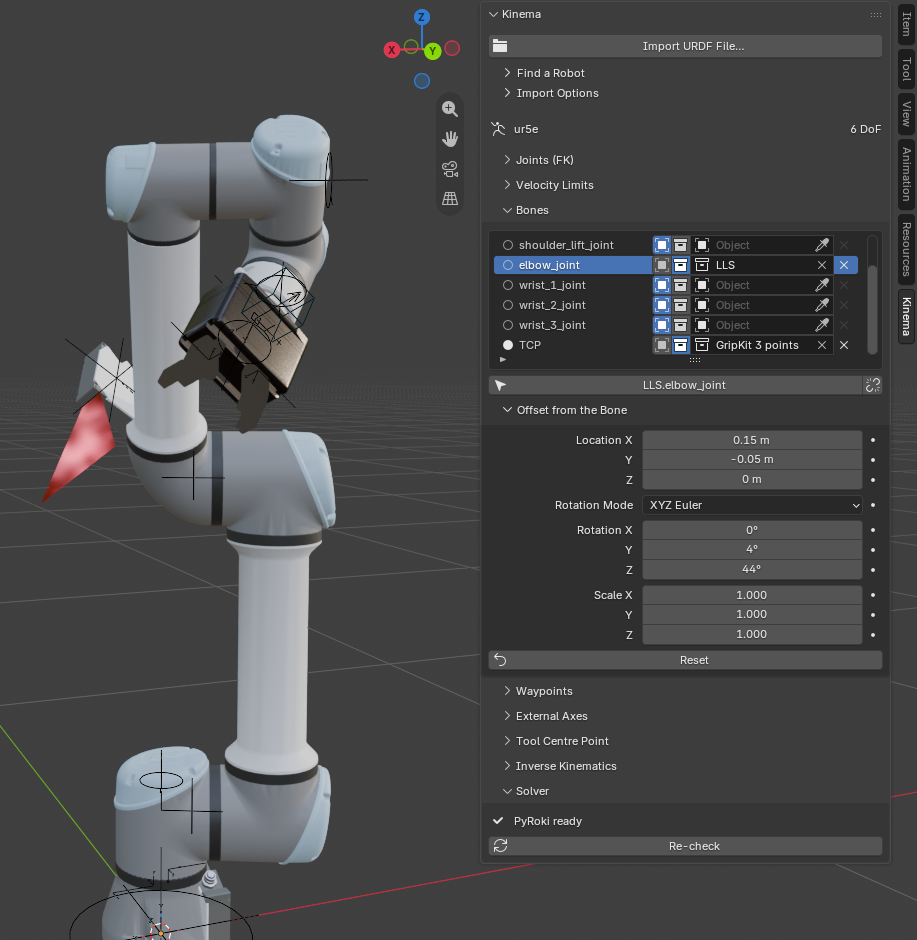
| Part of the row | What it does |
|---|---|
| ◉ radio | Aim the solver at this bone. Offered on joint bones and on the TCP marker, which is the default |
| Object / Collection | Whether this bone takes a linked copy of an object, or an instance of a collection |
| Picker | The thing to attach. Pick one and a copy appears on the bone; clear it and the copy goes |
| ✕ | Unparent the attachment but leave it in the scene, where it appears |
The IK control bone is hidden from the list — it is a goal, not a part of the robot. Root gets no radio, because there is nothing to solve to.
Below the list, for the highlighted row:
| Control | What it does |
|---|---|
| ⟨attachment name⟩ | Select the attachment, ready to move it |
| Offset from the Bone | Its location, rotation mode, rotation and scale — the offset from the joint |
| Reset | Sit the attachment exactly on the bone, with no offset |
An attachment is a linked copy: it shares mesh and materials with what you picked, so the same harness can dress six links and be edited in one place. Its transform is its offset from the bone, which is why scaling the source does not change it — scale the attachment here instead. See dressing a rig.
Waypoints
Where you say what the robot should do. Teach it a set of poses, put each on the timeline, and generate the motion between them.
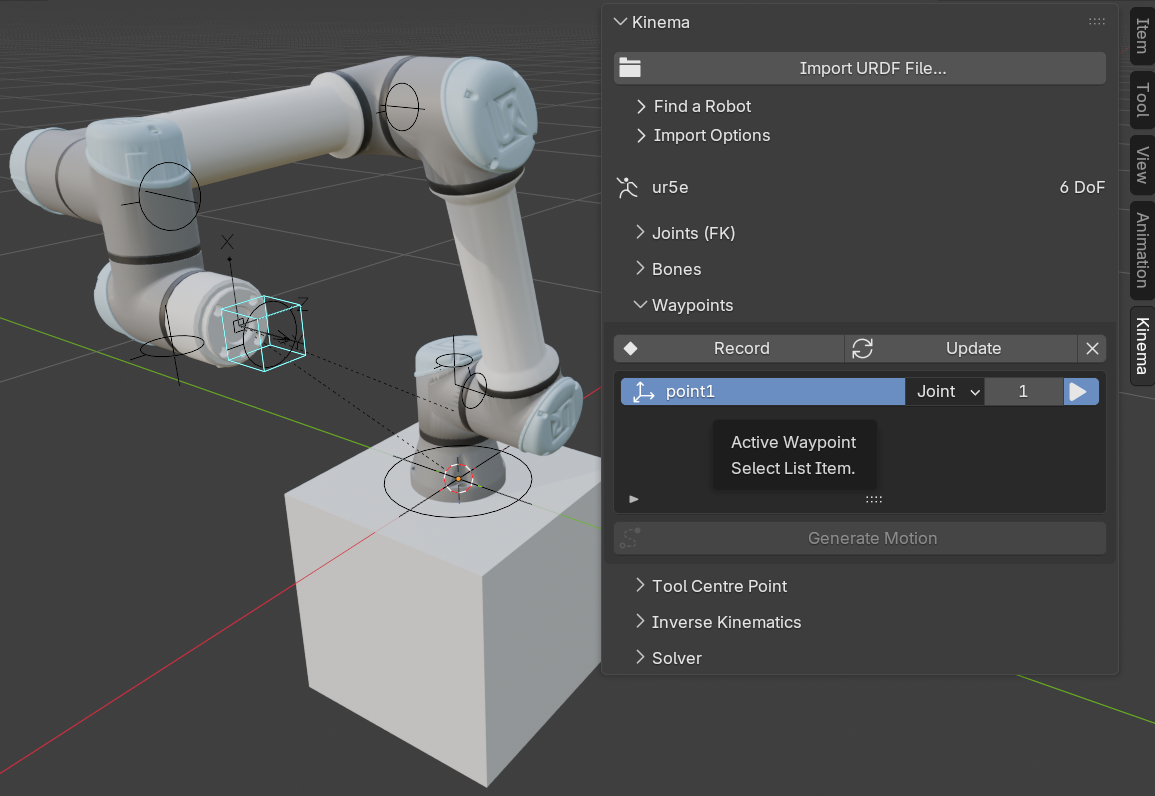
| Control | What it does |
|---|---|
| Record | Store the robot's current pose as a waypoint on the current frame |
| Update | Re-record the highlighted waypoint from the robot's current pose |
| ✕ | Delete the highlighted waypoint and its marker |
| Generate Motion | Key the robot through its waypoints in frame order |
Each row in the list is one waypoint:
| Part of the row | What it does |
|---|---|
| Name | Yours to set — home, approach, pick, drop |
| Move | How the robot arrives here: Joint or Linear |
| Frame | When it should be there. This is the ordering |
| ▶ | Jump to that frame and restore the exact configuration it was taught in |
A waypoint stores the tool pose and the joint values it was taught with. Both, because a pose on its own does not say which way the elbow was bent — a six-axis arm can reach the same tool pose up to eight different ways. ▶ restores the configuration you taught rather than re-solving and picking a different one.
Each waypoint also gets an Empty in the viewport, so you can snap it to a vertex on the part being worked. Dragging that Empty re-aims the move.
Joint or Linear
| Move | What it does | Use it for |
|---|---|---|
| Joint | Interpolates the joints | Crossing the workspace. Fast, always reachable, and the tool takes whatever path falls out |
| Linear | Drives the tool along the straight line between the two poses | The part of the job that has to be straight — a weld seam, a plunge, a dispensing pass |
Linear needs an IK target on the rig; the panel says so if one is missing.
A joint move replays the joint values it was taught with, so it cannot follow a marker you have since dragged somewhere else. Generating tells you which waypoints that applies to, and the fix is either Update or switching the row to Linear.
What Generate Motion writes
Ordinary keyframes. Joint channels for joint moves, the IK goal for linear ones, and the live-IK switch keyed so each span is solved the way it should be.
Nothing about the result is special, which is the point — Blender's own graph editor shapes it afterwards, and Bake to Keyframes still reduces the whole thing to plain joint curves that render with Kinema uninstalled.
Regenerating replaces the previous motion rather than layering on it, and only over the frames the job actually covers: animation you keyed outside that range survives.
The frame field is where a retime sticks. The keys Generate Motion writes are its output, so dragging those in the dope sheet retimes the animation until the next regeneration writes the stored frames again.
See Teach a robot a job.
External Axes
Collapsed by default. Tracks, turntables, positioners and tool spindles the robot description doesn't have, added to the rig as joint bones.
Each axis on the rig is listed with its mount (Under the Robot, On the Tool or Standalone) and a ✕ that removes it, putting back everything adding it changed. Their sliders and hold pins are with the other joints, in Joints (FK).
| Control | What it does |
|---|---|
| Add External Axis… | Open the dialog: a preset, the mount, the motion and its limits, where the axis sits and what it carries. The viewport previews the result until OK |
Tool Centre Point
The TCP is the working point of the robot: the tip of the tool, and what IK aims at by default.
With a TCP on the rig, the panel shows which link it is measured from, its live X/Y/Z position and its R/P/Y orientation, reported as the tool frame, not the marker bone's.
| Control | What it does |
|---|---|
| Edit TCP… / Place TCP… | Open the dialog: place the TCP by offset, on the 3D cursor or on an object's origin, with a preview in the viewport. Reads Place when the rig has no TCP yet |
| Parent Bone | The joint bone the TCP rides. Only joint bones can host it |
| Tool Offset | Location and roll/pitch/yaw from that joint's mounting flange (tool0), or its link frame where it has none. The section's first line says which |
| Reset | Zero the offset, putting the TCP on the flange itself, or on the joint's link frame where the offset is measured from there (no flange, or a rig imported before 0.6.0) |
| Update TCP / Create TCP | Apply the parent bone and offset. Reads Create when the rig has no TCP yet |
| Move TCP to Active Bone | The older route: place it on whichever bone is active in Pose or Edit mode |
A fresh import puts the TCP on the flange with a zero offset, so a TCP from a tool's drawing goes in unchanged. On a robot with no flange, and on rigs imported before 0.6.0, the offset is measured from the joint's link frame instead. See where zero is.
Changing the TCP leaves the robot where it is, and an IK target aimed at the TCP comes along to the new one.
Inverse Kinematics
Before you add a target, this panel has one button:
| Control | What it does |
|---|---|
| Add IK Target | Create a keyframable control at the TCP. On a chain with more than six joints, it also holds the slides, base first, while more than six are left |
Adding a target compiles the solver — roughly 15 seconds. It happens once per bone you aim at, not once per robot, so pointing the target at a bone the solver has not seen before pays it again. A handful of recent ones stay compiled, so scrubbing back and forth over a hand-off is free after the first pass, and removing the target and adding it back costs nothing. It requires a TCP.
Once a target exists:
| Control | What it does |
|---|---|
| Live IK | Toggle continuous solving as the target moves. Enabled when the target is created. |
| Solver | PyRoki, NumPy or Off — see the two solvers |
| Target Bone | Which bone the solver aims at, by index. -1 is the TCP |
| Key Target Bone | Keyframe that choice, so a shot can hand the goal from one bone to another |
| Solving to '⟨bone⟩' | Which bone that index currently resolves to |
| Snap to Tool | Move the target back onto the tool's current position |
| ✕ | Remove the IK target; the rig returns to plain FK |
| Bake to Keyframes | Solve every frame and key the joints |
The friendly way to change the target is the radio column in the Bones panel; the field here is the raw channel, and the button beside it is how you key it. Use the button rather than I: the target is an index, not a quantity, and its keys have to step between values. Interpolated, a hand-off from the tool point to joint 3 would pass through joints 1 and 2 on the frames in between and solve two chains nobody asked for.
Configuration
Collapsible. A six-axis arm can put its tool in one place up to eight different ways: elbow up or down, wrist flipped, base swung round.
| Control | What it does |
|---|---|
| Find Solutions | Search for the other configurations that reach the target's pose |
| ◀ Solution N of M ▶ | Step through what was found. Applying one only writes joint values, so Key All keys it |
The search seeds the solver from configurations scattered across the joint limits, and keeps the distinct ones that reach the goal. So M is what turned up, a lower bound rather than a proof that nothing else exists. Solutions belong to one pose. Move the target and the section says The target moved; search again. Held joints stay put in every solution.
Elbow Swivel
Collapsible. It appears when more than six joints are left to IK, which on a seven-axis arm means the elbow can swing round the shoulder-to-wrist line while the tool holds still.
| Control | What it does |
|---|---|
| Add Elbow Swivel | Put a ring on the shoulder-to-wrist line. Turning the ring swings the elbow |
| Swivel | The ring's one rotation channel, which is the elbow's angle, with its own keyframe dot |
| ⟨shoulder⟩ - ⟨elbow⟩ - ⟨wrist⟩ | The three joints the line and the swing are measured from |
| Elbow Strength | How firmly the elbow is held at its angle, against the tool's own weight of 50 |
| Remove | Take the swivel off |
Adding the swivel pays one more compile, because an elbow goal makes a different problem. It needs the PyRoki solver, and says so under NumPy.
Pin a joint so that six or fewer are left, and the section stays put. The slider greys out, the header shows a warning, and it reads Only N joints left to IK: nothing to swing. Release a held joint and the swivel works again.
Below sits a readout box:
- Last solve: N ms — with a tick if within the solve budget, a warning if not
- Over budget; live updates paused — the guard described in the solve budget
- A one-line summary of how the last solve converged
- PyRoki unavailable for this rig plus the reason, if the good solver could not be used for this particular robot
- PyRoki waits until the edit is done / Solving on NumPy meanwhile: after an edit that needs the solver compiled again, such as an external axis or a TCP on another joint. It compiles once the edit settles; see why the first solve is slow
See Animate with an IK target.
Solver
Global solver status, independent of which robot is selected. This is the panel to check when something is wrong.
| It says | It means |
|---|---|
| ✓ PyRoki ready | The full solver is loaded. This is what you want. |
| Solver loading… / Using NumPy fallback | The solver stack has not been imported yet. It loads on first use, so click Re-check or add an IK target — expect a 2–5 second pause. |
| PyRoki unavailable + an error + Using NumPy fallback | The solver stack failed to load. The add-on still works, with the simpler solver. |
| Control | What it does |
|---|---|
| Re-check | Re-run the dependency check and refresh this panel |
The error line is the actual import failure, truncated to fit. It is the most useful piece of information you can give in a bug report — see Solver unavailable.
Menu entries
Kinema also adds two entries outside the sidebar, under File → Import:
| Entry | What it does |
|---|---|
| Robot URDF (.urdf/.xacro) | Same as Import URDF File… |
| COLLADA (.dae) | Import a .dae mesh — Blender 5.0 removed its own importer |