Put a robot on a track
About ten minutes. You need a robot imported — your first robot gets you there.
A robot description usually covers the arm alone. The cell it works in often has more: a track the robot rides along, a turntable under its base, a positioner turning the part beside it, a spindle on its flange. These are external axes. The robot's controller drives them like extra joints, but the description has never heard of them.
Kinema adds them to the rig as ordinary joint bones. Each one gets:
- a slider in Joints (FK);
- a hold pin;
- limits and a top speed, checked by Velocity Limits;
- keys and bake, like any imported joint.
PyRoki solves through them.
1. Open the dialog
Open the External Axes panel and click Add External Axis….
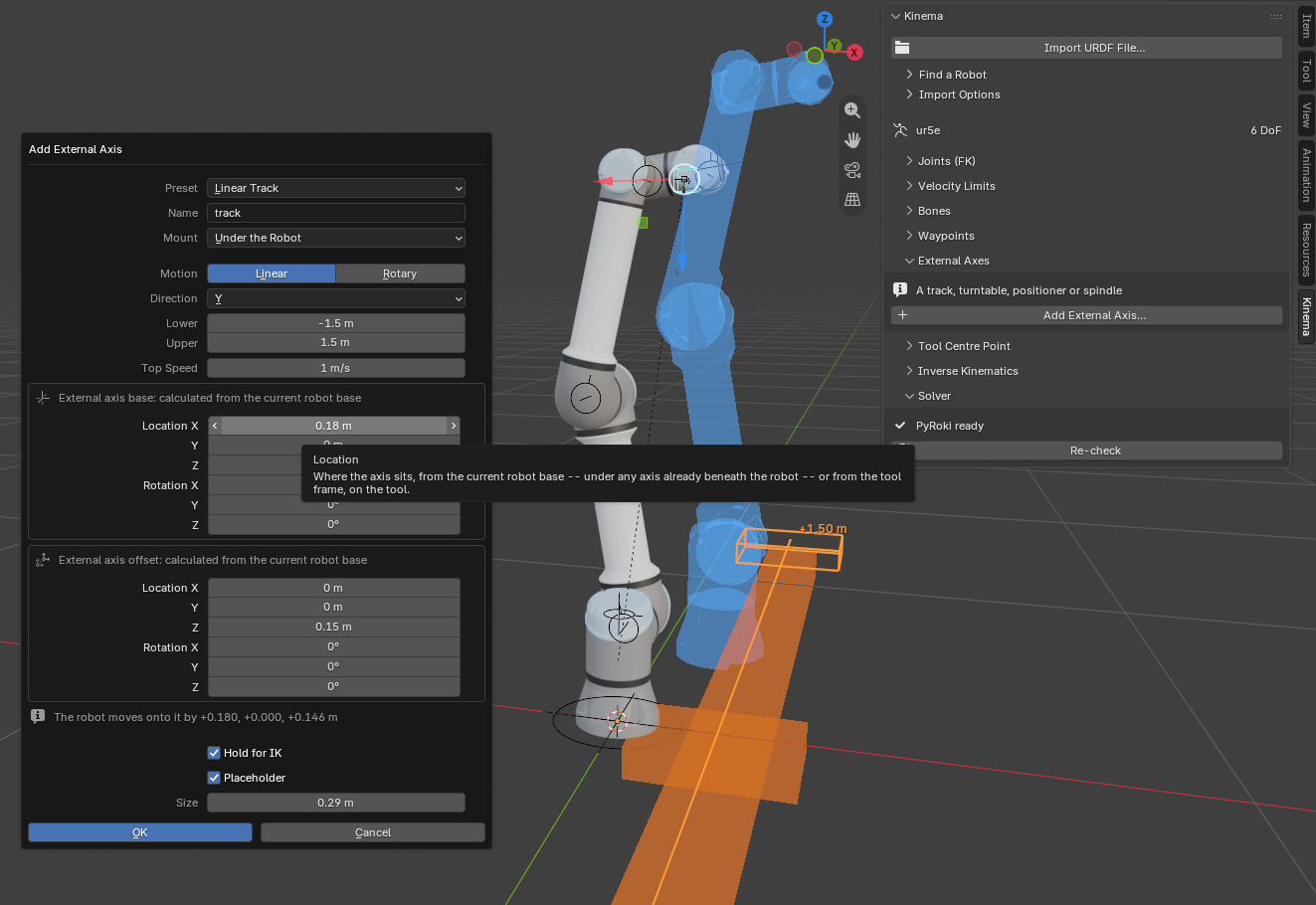
Start from a Preset. Each one only fills in the fields below it, so you can change any of them afterwards:
| Preset | What it is | Mount |
|---|---|---|
| Linear Track | A rail the robot rides along | Under the Robot |
| Rotary Base | A turntable under the robot, turning the whole arm | Under the Robot |
| Positioner | A turntable beside the robot, turning the part | Standalone |
| Tool Spindle | A spindle on the tool, turning about the tool's Z | On the Tool |
| Tool Slide | A slide on the tool, pushing along its Z | On the Tool |
The Mount says what the axis carries:
- Under the Robot: the robot rides it.
- On the Tool: it rides the flange, and carries the TCP.
- Standalone: it stands on its own and carries nothing, until you attach a part to it in the Bones panel.
2. Say how it moves
- Motion and Direction: linear or rotary, along or about ±X, ±Y or ±Z of where the axis sits. A rotary axis can be Continuous, with no end stops.
- Lower and Upper: its travel.
- Top Speed: what Velocity Limits warns past.
3. Place it, and watch it in the viewport
While the dialog is open, the viewport shows what you'll get, and follows every field as you drag it:
- the axis itself, a rail and carriage or a base and plate, while Placeholder is ticked;
- its travel: the carriage outlined at both end stops, or an arc from stop to stop, with the limits written beside them;
- for an axis that moves the robot, a see-through ghost of the robot where it will stand.
Nothing is solved, and nothing is added to the scene, until you press OK. Clicking in the viewport to look closer closes the dialog, but opening it again brings back what you had.
Two placements say where things go. Each is a location plus roll, pitch and yaw:
- External axis base: where the axis sits. For an axis under the robot, it's measured from the current robot base. For one on the tool, from the tool.
- External axis offset: where what the axis carries sits on its moving part: the robot's base, or the TCP.
With both at zero, nothing moves: the axis slides in under the robot, or behind the TCP, exactly where they are. Give them values and the robot moves onto the carriage. Everything it carries moves with it, so the pose you had is still the pose you have:
- the robot's bones and its TCP;
- the IK target and the swivel;
- its keyed IK path;
- the waypoints.
4. Move it
Press OK. The axis appears in the External Axes panel, and its slider is in Joints (FK).
It starts held: an external axis is usually positioned by hand, and the arm reaches from wherever it stands. Drag the slider and the tool stays put while the arm follows. Release the hold pin to let IK move the axis too, say to reach past the arm's own range along the track.
No waiting while you adjust it
Right after OK, the Adjust Last Operation panel lets you change the axis, and every change re-runs the add. So the solver doesn't compile during that: live IK uses the simpler NumPy solver, and the IK panel says PyRoki waits until the edit is done. It compiles once, when you move on or leave the axis alone for ten seconds. See why the first solve is slow.
Two tracks, or a track and a turntable
Add a second axis under the robot and it goes in underneath the first. It sits just below the first one's rail, and it carries the first one along with the robot. An X track, then a Y track, gives you a gantry: the Y track carries the X track, which carries the robot, as if the X track were already part of the robot. The dialog's "current robot base" is exactly that: the robot plus whatever it already rides.
Placeholders
The rail, carriage, base and plate are generated at a size the dialog suggests from the robot's reach, so they look like part of the robot they belong to. They ride their bones, use one material you can restyle, and go when the axis goes.
Have a model of the real track? Untick Placeholder, then attach your model to the axis bone in the Bones panel.
Taking one off
The ✕ beside an axis in the External Axes panel removes it and puts back everything adding it changed:
- the robot where it stood;
- the TCP, with its offset, for an axis on the tool;
- the IK target, the waypoints and the other axes.
Stacked axes can come off in any order. Something you parented to the axis bone by hand stays where it is.