Animate with an IK target
Inverse kinematics runs the problem backwards: you say where the tool should be, and the solver works out the joint angles that put it there. For any shot where the robot has to reach, follow, place or trace, this is the workflow.
Add the target
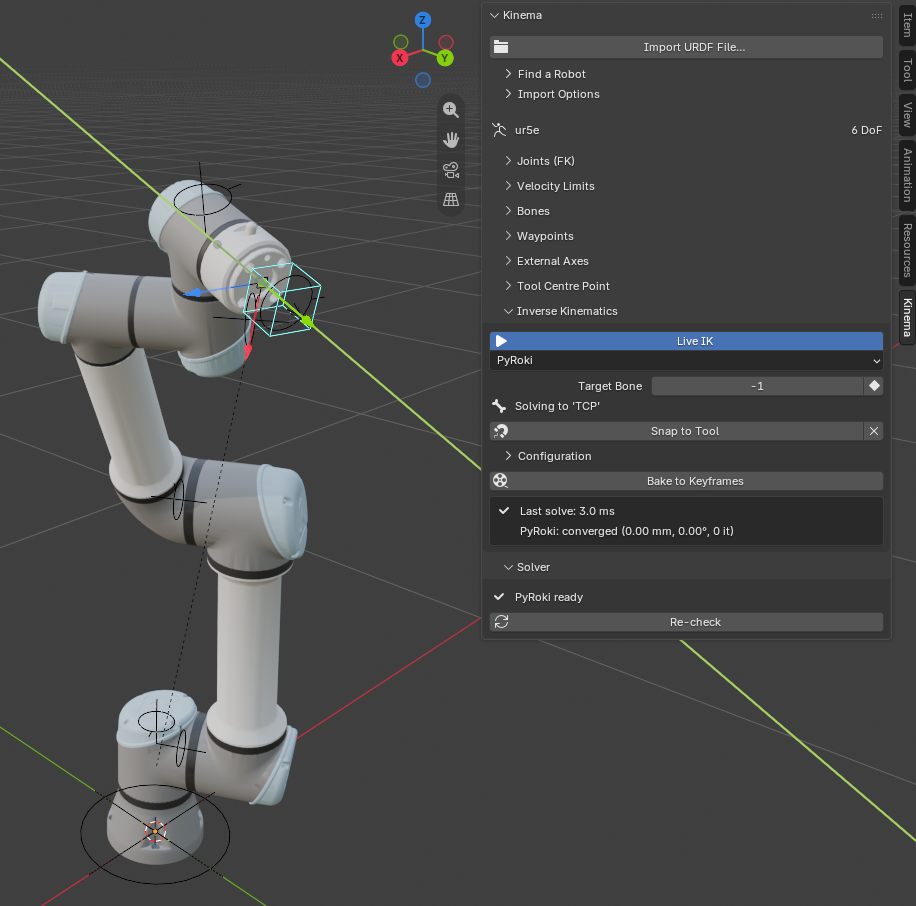
Select the rig, open Inverse Kinematics, click Add IK Target.
Three things happen:
- A control appears at the robot's tool centre point, snapped to wherever the tool currently is — adding a target never disturbs the pose you had.
- The
Kinema/IKbone collection is unhidden so you can see and select it. - The solver compiles for this robot, behind a wait cursor.
The first solve takes about 15 seconds
That wait cursor is a one-off compilation. It is paid up front, on purpose, rather than landing on your first drag of the control. Every solve afterwards is a few milliseconds. See Forward and inverse kinematics.
It is once per bone you aim at, not once per robot — so pointing the target at a new bone pays it again. A handful of recent ones stay compiled, so scrubbing over a hand-off is free after the first pass.
Move it
Grab the control and move it. The arm follows, live, respecting every joint limit.
The control is parented to the rig's root, never into the arm itself — an IK goal that moved with the arm it drives would chase its own tail.
It is an ordinary pose bone. Grab, rotate, scale-locked, keyframable, constrainable. You can parent it to a moving object, copy its transform from a path, or drive it with any Blender rig you already know how to build.
The panel while you work
| Control | What it does |
|---|---|
| Live IK toggle | Solve continuously as the target moves. On by default after you add a target. |
| Solver dropdown | PyRoki, NumPy, or Off — see below |
| Target Bone | Which bone the solver aims at — see below |
| Key Target Bone | Keyframe that choice, so a shot can hand the goal from one bone to another |
| Solving to '⟨bone⟩' | Which bone that resolves to right now |
| Snap to Tool | Jump the target back onto the tool's current position |
| ✕ | Remove the IK target, returning the rig to plain FK |
| Configuration | Collapsible. Find Solutions and the ◀ ▶ arrows: the other ways the arm can reach this pose — see below |
| Elbow Swivel | Collapsible, on arms with a joint to spare. A ring that swings the elbow while the tool holds — see below |
| Bake to Keyframes | Solve every frame and key the joints |
Underneath sits a readout: Last solve: N ms, plus a summary of how well the last solve converged.
When the readout turns red
If a solve takes longer than the solve budget (33 ms by default), live updates pause and the panel says Over budget; live updates paused. This protects the viewport from becoming unusable on very high-DoF rigs — a humanoid with fifty joints is a much bigger problem than a six-jointed arm.
You can raise the budget in Preferences, or switch to the NumPy solver, or simply keep working and bake at the end.
The Solver dropdown
- PyRoki — the real solver. Understands joint limits, singularities and multi-turn joints. Use this.
- NumPy — a lightweight fallback. Faster to start, less clever near singularities. Useful on huge rigs, or if PyRoki is unavailable.
- Off — leave the target in place but stop it driving the rig. Hands control back to the FK sliders.
Aiming at a different bone
By default the solver aims at the tool centre point. It does not have to. Every joint bone gets a radio button in the Bones panel, and clicking one re-roots the chain there.
This matters on redundant robots. A Panda imports with its tool frame on a fingertip, which puts the gripper's finger joints inside the chain. They are slides, so Add IK Target holds them the way it holds a rail. But the arm is still solving to a finger rather than to its hand. Aim at the flange instead, and the chain is the seven arm joints it should be.
Switching snaps the control onto the new target, so the arm does not jump.
Keyframing which bone
The choice is animatable, so a shot can hand the goal from the wrist to the elbow part-way through — useful when one part of a move is led by the tool and the next by the arm.
Use Key Target Bone beside the field rather than I. The target is an index, not a quantity, and its keys have to step between values. Interpolated, a hand-off from the tool point to joint 3 would pass through joints 1 and 2 on the frames in between and solve two chains you never asked for. The button forces the channel to step; the keyframe menu does not.
Baking follows a keyed target, and keys every joint that is active anywhere in the range.
When the arm reaches the wrong way
The tool is where you want it, but the elbow is on the wrong side, or the wrist has flipped. That's the arm reaching the same pose a different way, and it isn't wrong. Most arms have several ways to reach a pose, and the solver picks the one nearest where the arm already was.
- Choose another. Open Configuration and click Find Solutions, then step through them with ◀ ▶. Applying one only writes joint values, so key it with Key All in the Joints panel.
- On a seven-axis arm, swing the elbow. Add Elbow Swivel puts a ring on the shoulder-to-wrist line. Turn it, and the elbow swings round while the tool stays exactly where it is. The ring's angle keys like any rotation.
- On an arm on a rail, move the rail yourself. The rail is held by hand, so drag it and the arm reaches from its new position.
See several ways to reach one pose and spare joints.
Snap to Tool
Two situations leave the target and the tool in different places:
- You posed the arm with FK sliders while the solver was Off
- A solve failed to converge, so the tool did not reach the goal
Snap to Tool puts the target back on the tool. It is the "resynchronise" button — use it whenever the control and the robot appear to disagree.
The animation loop
- Enable Live IK
- Move to a frame
- Position the IK target where the tool should be
- Keyframe the target — I in the viewport, like any bone
- Repeat
You are keyframing one control through space instead of six joint angles. Scrub the timeline and the arm solves each frame as it plays.
Playback is solving in real time
While Live IK is on, every frame you scrub through is being solved. That is fine for review, but it makes playback slower than the finished animation will be, and it means the motion only exists while Kinema is installed. Bake when you are happy.
What good IK looks like
Watch for these while you work:
- The arm flipping between two configurations as the target crosses a boundary. Real robots do this too; it is a property of the geometry, not a bug. Keyframe through it, or route the target around it.
- The tool stopping short of the goal. The target is outside the robot's reach, or a joint limit is in the way. The readout will tell you the solve did not converge.
- Sudden speed near a fully-extended arm. That is a singularity — what it is and why it happens.