Bake and hand off
While Live IK is running, your animation only exists as long as Kinema is installed and
solving. Bake to Keyframes turns it into ordinary joint keyframes — a .blend that
plays back anywhere, on any machine, with no add-on at all.
This is the step that makes the work portable. Do it before you hand a file to a colleague, send it to a render farm, or archive it.
Bake it
With an IK target on the rig, click Bake to Keyframes in the Inverse Kinematics panel.
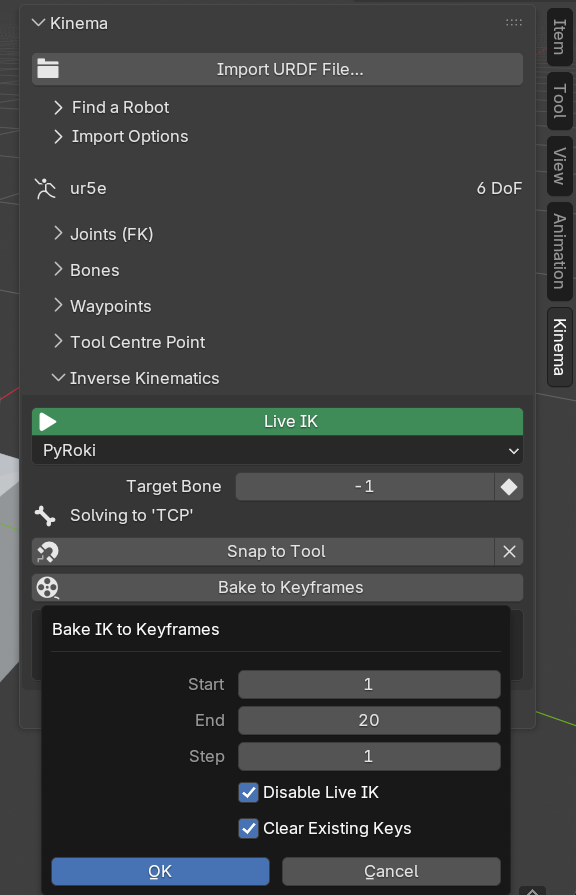
| Option | Default | What it does |
|---|---|---|
| Start | scene start | First frame to bake |
| End | scene end | Last frame to bake |
| Step | 1 | Bake every Nth frame (1–10) |
| Disable Live IK | on | Turn the live solver off afterwards |
| Clear Existing Keys | on | Remove existing joint keys in the range first |
Start and End are prefilled from your scene's frame range, so the common case is to open the dialog and confirm.
Kinema then steps through every frame, solves, and keys the joints. Live solving is suspended while it runs, so each frame is solved once — by the bake — rather than twice.
If the target bone is keyframed, the bake follows it: the chain it solves changes with the target, and every joint that is active anywhere in the range gets a key on every frame. A joint that drops out of the chain part-way through still has a value, and a channel that simply stopped being keyed would hold its last one — a different pose than the one baked.
A progress bar runs in the status bar; long ranges on big rigs take a while, because it is doing the real solve once per frame.
What you end up with
Keyframes on the joint bones — the same channels the FK sliders drive. Nothing exotic, nothing that depends on Kinema. An F-Curve editor shows one curve per joint, and you can edit them like any other animation.
The IK target is still there, still keyframed, but with Disable Live IK on it is no longer driving anything. What plays back is the baked keys.
Keep the IK target
Do not delete the target after baking. It is your source of truth: if the shot needs changing, re-enable Live IK, adjust, and bake again. Deleting it means going back to posing six joints by hand.
Why the two defaults are on
Clear Existing Keys is on because baking over old keys without clearing them leaves you with a mix of two takes on the same channels — the new bake where it landed, the old animation everywhere it did not. That is very hard to diagnose after the fact.
Disable Live IK is on because if the solver keeps running after the bake, it competes with the keys you just made. You would be watching the live solve, not the bake, and would have no way to tell whether the bake was any good.
Checking the bake
Turn Live IK off (the bake did this for you) and scrub the timeline. The robot should move exactly as it did before.
If some frames look wrong, they are almost certainly frames where the solve did not converge — the target was out of reach or a joint limit blocked it. Kinema reports the count of failed frames when the bake finishes. Go back to those frames, move the target into reach, and bake again.
Handing the file off
Once baked, the .blend is self-contained:
- It plays on a machine that has never had Kinema installed
- It renders on a farm with no add-ons
- It survives Kinema being uninstalled entirely
The armature is a normal armature, the meshes are normal meshes parented to it, and the animation is normal keyframes. The rig outlives the tool that built it — which is the whole point.
Baking at a Step above 1
Stepping bakes fewer keys and interpolates between them. That is fine for slow, smooth motion and noticeably wrong for fast or tightly-constrained motion, where the interpolated path between two solved poses is not a path the robot can actually take. When in doubt, bake every frame.