 Kinema
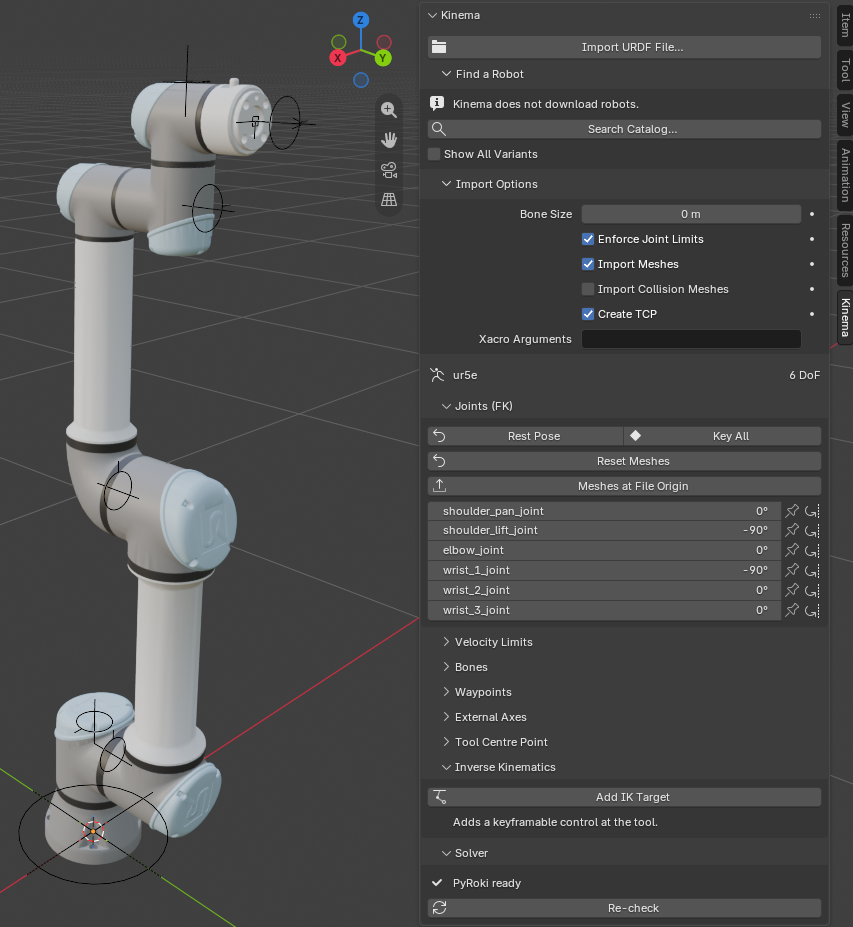
Animation-ready robot rigs in Blender. Import a robot description and get a single clean armature you can actually animate — with IK that understands singularities, joint limits and multi-turn joints. A built-in catalog of 186 real robots tells you where to find one.
Who this is for
You know Blender. You are comfortable with armatures, pose mode, keyframes and the sidebar. You have been asked to animate a robot arm — for a product shot, an explainer, a game cinematic, a factory walkthrough — and the reference material you have been handed is a folder of files with extensions you have never seen.
You do not need to know robotics. This site explains the handful of ideas you actually need, in Blender's own vocabulary, at the point where you need them.
What you get
When Kinema imports a robot, you end up with one armature that behaves like a rig an animator would build by hand:
- One armature. Not armatures nested inside armatures.
- One bone per joint, each a true single-axis control with the real limits from the manufacturer's data already applied.
- Bone collections —
Kinema/FK,Kinema/IK,Kinema/TCP,Kinema/Mechanism— so you see controls, not machinery. - An IK target you keyframe like any other, but solved by a proper robotics solver instead of Blender's built-in one — and what it aims at is keyframable too.
- Control over how the arm reaches. Step through the other configurations that reach a pose, hold a rail or gantry by hand while IK solves the arm, and swing a seven-axis arm's elbow while the tool stays put.
- The rest of the cell. Add the tracks, turntables, positioners and tool spindles a robot is installed with, which its description doesn't have, and see them in the viewport before they're added.
- A tool centre point from the tool's drawing. Offsets are measured from the robot's mounting flange, as a tool's CAD is, or pick the working point off the tool mesh with the 3D cursor.
- A warning when a joint is too fast. Velocity limits come from the robot's own description or its MoveIt configuration, and a joint moving faster than the real motor could turns red.
- Waypoints on the timeline. Teach the arm a set of poses, say how it gets from one to the next — joint-space or a straight line — and generate the motion. The workflow a robot programmer already knows, writing ordinary Blender keyframes.
- Somewhere to bolt your tools. Attach an object or a collection to any link, offset it from the joint, and it rides the robot.
- A bake step, so the finished
.blendrenders anywhere, with or without Kinema installed.
Start here
-
Get the right build for your machine and into Blender.
-
Catalog to posed arm in about ten minutes.
-
The robotics vocabulary, explained for Blender people.
-
Something looks wrong or nothing solves.
Why Kinema exists
Every other Blender robotics tool treats Blender as a design and export station: you build a robot, then send it out to a simulator. They optimise for producing simulation assets.
Kinema optimises for the opposite thing — open a .blend, find a clean rig, animate it,
hit render. Blender is the destination, not a stop along the way.
That difference shows up everywhere in the rig. A simulation exporter is happy to nest armatures, leave joint axes in whatever orientation the source file used, and expose every internal transform as a control. None of that is animatable. Kinema spends its effort making the result feel like a rig, because that is the thing you are going to spend eight hours inside.
Working on Kinema itself?
Build instructions, the bundled-wheel payload and the vendoring setup live in the README rather than here. This site is for using the add-on.