The tool centre point
The tool centre point — TCP — is the spot on the robot that actually does the work. The tip of the welding torch. The centre of the gripper's grasp. The point of the pen.
It is the single most important frame on the machine, because every task is defined in terms of it. "Put the weld here" means "put the TCP here". Nobody specifies a robot task in terms of where its elbow goes.
Why it needs to exist separately
A robot's last joint is somewhere inside the wrist. The thing you care about is several centimetres further out, at the end of whatever tool is bolted on — and that offset changes every time the tool changes.
So the TCP is a marker: a frame that rides on the end of the chain at a defined offset, representing the working point rather than the last mechanical joint.
In Kinema it is a bone in the Kinema/TCP collection, created automatically on import
unless you turn Create TCP off.
What it is used for
It is what IK aims at by default. When you add an IK target, the target is created at the TCP, and the solver's job is to put the TCP where the target is. No TCP means nothing to aim, and Add IK Target refuses.
Only by default, though: the Bones panel can point the solver at any joint bone instead, and that choice is keyframable. See aiming somewhere else.
It is what you measure from. The Tool Centre Point panel reports its position and its orientation live — useful when you need the tool at a specific pose rather than somewhere that merely looks right.
It is what you hang a tool on. Pick the TCP's row in the Bones panel and attach a torch mesh, an emitter, a light or a camera; it rides the working point exactly, with an offset you can type. See attaching things to a link.
Orientation matters too
The TCP has a direction, not just a position. Kinema aligns it so its +Z points along the tool's approach direction — the way the tool is "looking", the direction it would travel to touch something.
This follows the convention used throughout robotics, so a TCP frame in Blender means the same thing it means in the robot's own documentation.
It matters in practice because IK solves for orientation as well as position. Rotating the IK target rotates the tool. If you are animating a gripper approaching an object, the approach direction is usually as important as the point.
Where zero is: the mounting flange
A tool is specified from the mounting flange, the face on the end of the wrist it bolts to. That is where a tool's drawing puts its origin, so it is where Kinema measures the TCP from.
Industrial robot descriptions define the flange as a link of its own, usually twice over by the ROS-Industrial convention:
tool0, with Z out of the flange face;flange, with X out of it.
Kinema uses tool0. Where a description has only a flange, it turns it so Z points out of
the face, as tool0 would. A fresh import puts the TCP right there, with a tool offset of
zero and the approach axis pointing out of the flange. So a TCP from a tool's drawing, say
Z = 0.15, goes in as it is, and means 150 mm out of the face.
The angles are roll, pitch and yaw about fixed X, Y and Z, which is what URDF's
<origin rpy="…"> means, so a tool transform copied out of a description goes in unchanged
too.
Robots without a flange, and rigs from before 0.6.0
A description that defines no flange has nowhere better to measure from than the last joint's own link frame. The importer then puts the TCP on the description's deepest link and fills the offset with the distance to it, since fixed joints get no bone and nothing else on the rig would show it.
Rigs imported before 0.6.0 also measure from the link frame, so their offsets keep the meaning they were typed with. Import the robot again to measure from the flange. The Tool Offset section says which it is, for example From the mounting flange (tool0).
Moving the TCP
The default TCP sits on the flange, which is right for a bare robot. As soon as a real tool is attached, you want the working point of that tool.
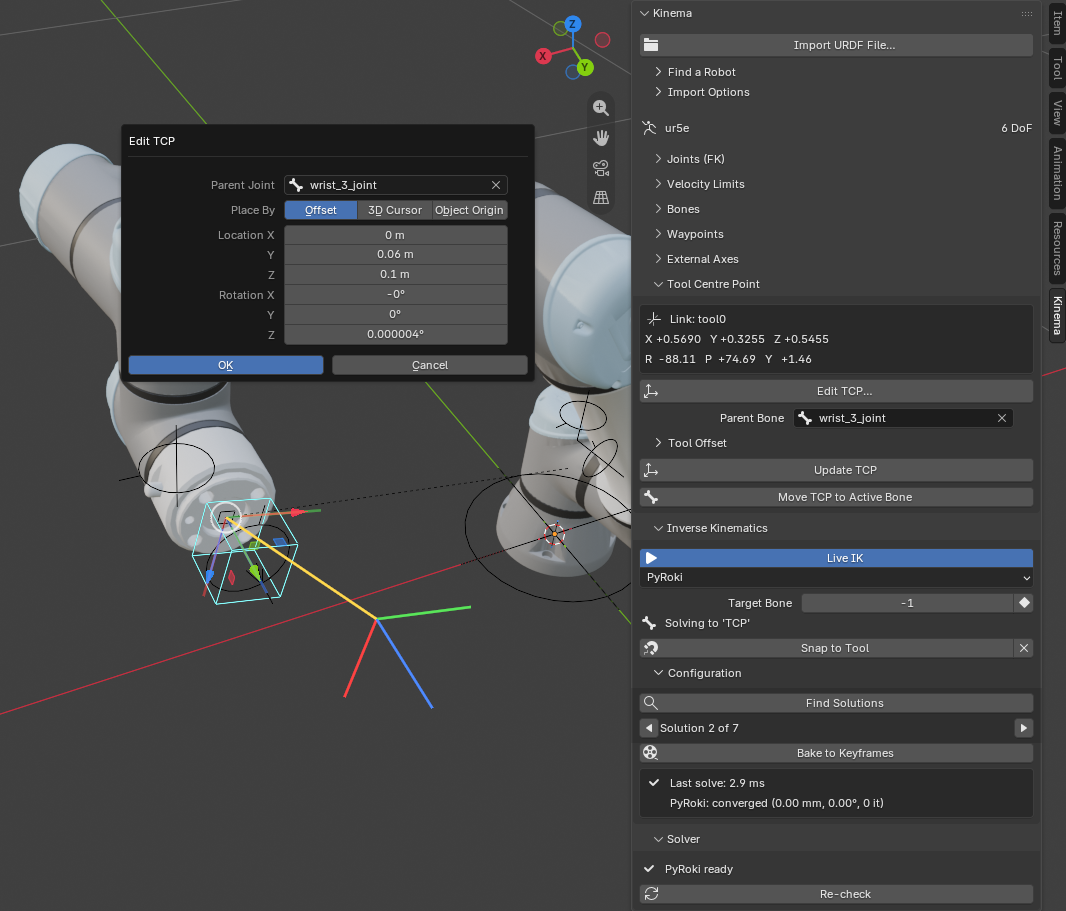
Edit TCP…
Edit TCP… in the Tool Centre Point panel opens a dialog that shows the result in the viewport before anything changes. The new TCP is drawn as a set of axes beside the current one, and it follows the fields as you drag them.
Pick the Parent Joint, the one the tool is bolted to, then place the TCP by one of three routes:
| Place by | Use it when |
|---|---|
| Offset | You have the numbers: a location and rotation from the flange, off the tool's drawing |
| 3D Cursor | The working point is a spot on the tool mesh. Snap the 3D cursor to that vertex first (Shift+S → Cursor to Selected), then open the dialog |
| Object Origin | The working point is an empty you placed, or the origin of the tool mesh itself |
The cursor and the object can give the TCP's orientation as well as its location (Use Its Rotation), or leave the orientation at the typed one. Either way the dialog shows the offset it will store, measured from the flange where it stands now, so this works with the robot posed. Clicking away to look at the viewport closes the dialog, but opening it again brings back what you had.
The panel's fields
The Tool Centre Point panel also takes a Parent Bone and a Tool Offset directly: pick the joint, type the offset, press Update TCP. Reset zeroes the offset, putting the TCP back on the flange. On a robot without one, or a rig imported before 0.6.0, zero is the joint's link frame, so Reset puts the TCP there instead, which may be inside the wrist.
Only joint bones can host the TCP. They are the ones carrying a flange or link frame for the offset to be measured from, and it keeps the marker off the IK control, which would otherwise leave it riding the goal it is supposed to define.
Move TCP to Active Bone is still there for the older habit: it places the TCP on whichever bone is active in Pose or Edit mode. It needs one, and says so if there is none.
What happens to the robot
Nothing moves. Changing the tool, as on a real robot controller, leaves the joints where they are. If the IK target aims at the TCP, it comes along to the new one, so live IK has nothing to correct. A keyed IK target goes back to its keys on the next frame: an animated path is the tool's path, and the new tool follows it.
Changing the TCP doesn't make the solver compile again either, unless it moves to a different joint. See why the first solve is slow.
The workflow
For a robot with a tool on the end:
- Import the robot. The TCP is already on the flange.
- Attach the tool in the Bones panel, on the bone it is bolted to.
- Edit TCP…: type the tool's TCP from its drawing, or snap the 3D cursor to the tool's tip and place it there.
- Add an IK target, and animate.
The order is forgiving. The TCP can change after the IK target exists, and the target comes with it.